
The Odoo QuickBooks Online Connector PRO imports products from QuickBooks Online into Odoo and exports Odoo products to QuickBooks Online. Products are matched by SKU, so items that already exist in both systems are linked instead of duplicated.
Import products from QuickBooks Online into Odoo
1. Import the QuickBooks products
Open the connection, click Initial Import and click Products (or All).
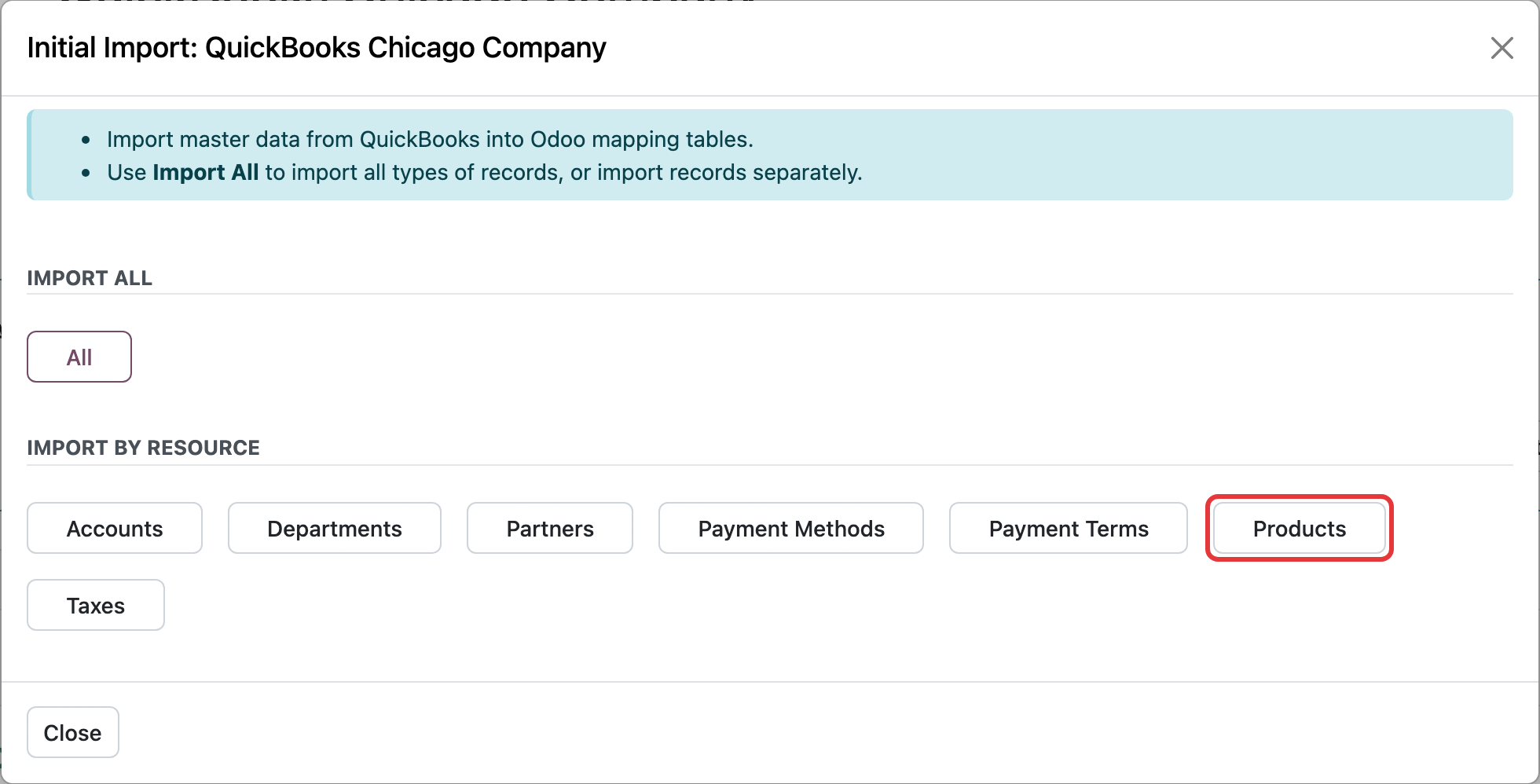
This loads your QuickBooks Online items into QuickBooks Online → Mappings → Products. At this point they are mappings only: the Odoo products are not created yet.
2. Link or create the Odoo products
In Mappings → Products, the Not Mapped filter shows the items without an Odoo product. For each item you can:
-
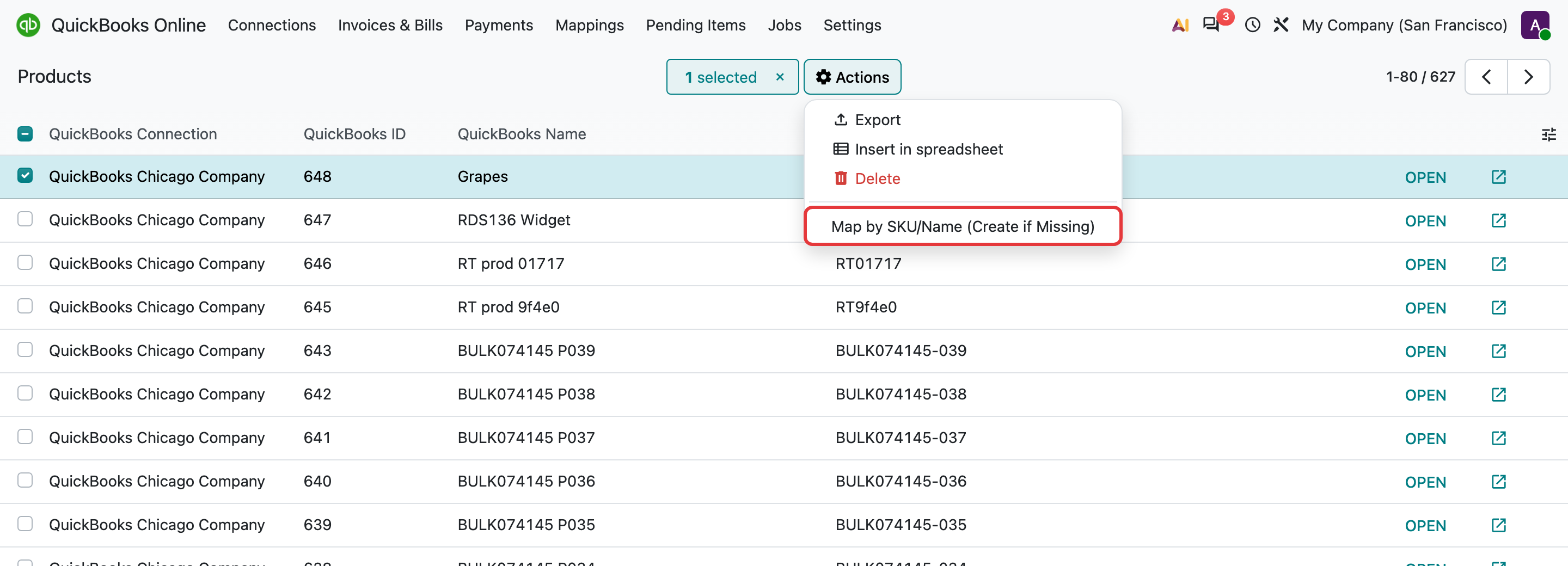
Link it automatically: select the items and choose Actions → Map by SKU/Name (Create if Missing). The connector looks for an Odoo product with the same SKU (Internal Reference), then with the same name, and creates a new product if none is found.
-
Link it manually: set the Odoo product on the mapping line yourself.
To avoid duplicates, make sure the Internal Reference of your Odoo products with the same SKU as in QuickBooks Online before mapping.
Export products from Odoo to QuickBooks Online
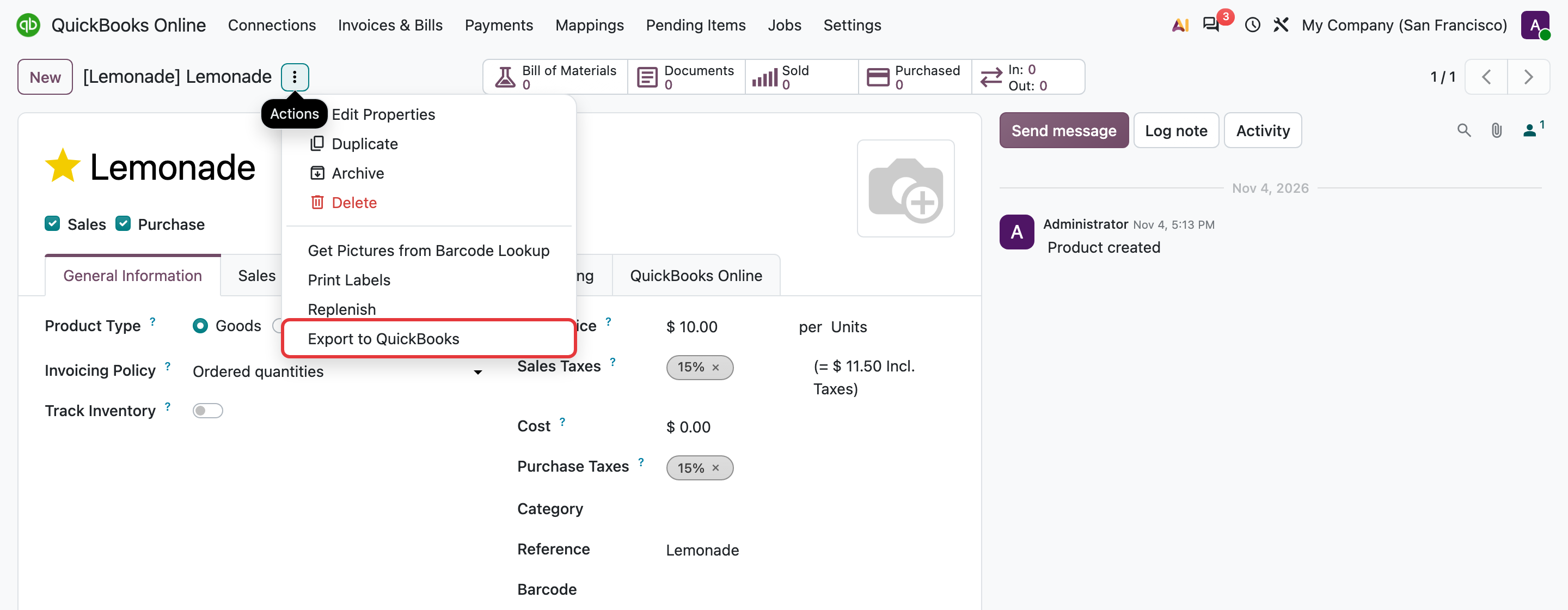
Open the product, click the ⚙ Actions menu and choose Export to QuickBooks. You can also select several products in the list view and export them at once.
Keep products up to date automatically
On the connection’s Misc tab, turn on Automatic Updates to QuickBooks and Allow Products Updates: changes to products that are already in QuickBooks Online (name, price and so on) are then sent automatically. To send stock quantities too, turn on Include Stock Quantities in Export.
More: How to automatically synchronize data between QuickBooks Online and Odoo · Configuration of the QuickBooks Online Connector