Odoo QuickBooks Online Connector PRO can keep Odoo and QuickBooks Online in sync automatically:
-
Export invoices, bills, credit notes and refunds
-
Import and export payments
-
Export updates of partners and products, including stock quantities
Everything is set up per connection: open QuickBooks Online → Connections, open the connection, and turn on the options you need on its tabs.
Invoices and bills
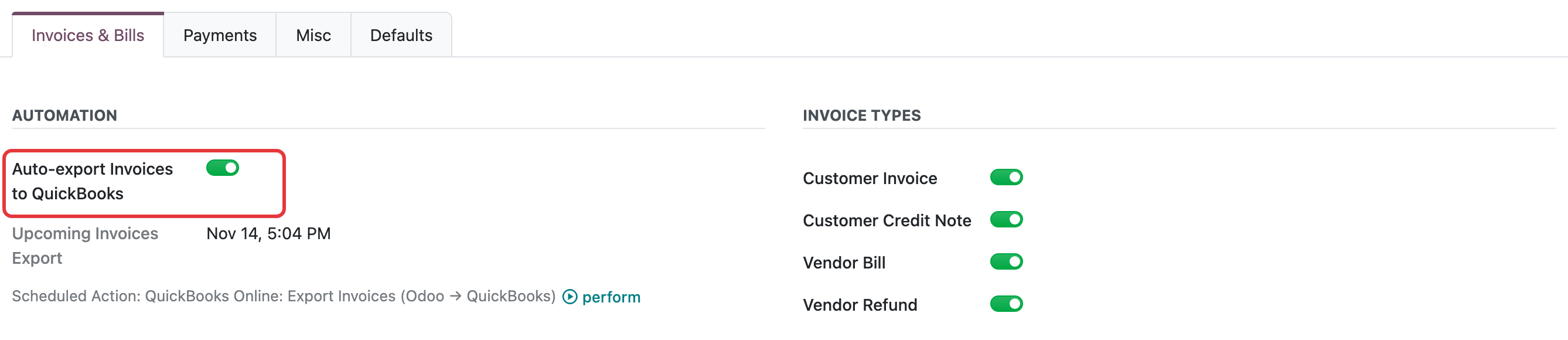
On the Invoices & Bills tab, turn on Auto-export Invoices to QuickBooks. Under Invoice Types, choose what to export: customer invoices, customer credit notes, vendor bills and vendor refunds.
Payments
On the Payments tab:
-
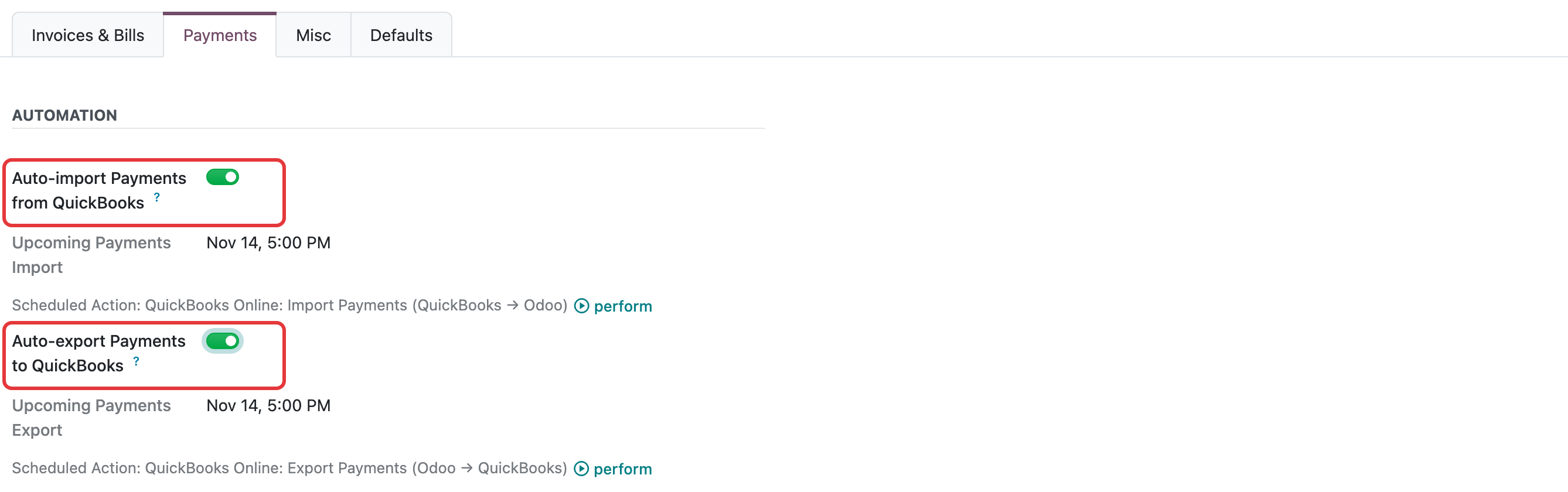
Auto-import Payments from QuickBooks imports payments recorded in QuickBooks Online for invoices and bills that are already synced. The Odoo invoice becomes In Payment, then Paid once the payment is reconciled.
-
Auto-export Payments to QuickBooks exports payments registered in Odoo for invoices and bills that are already synced.
Partners, products and stock
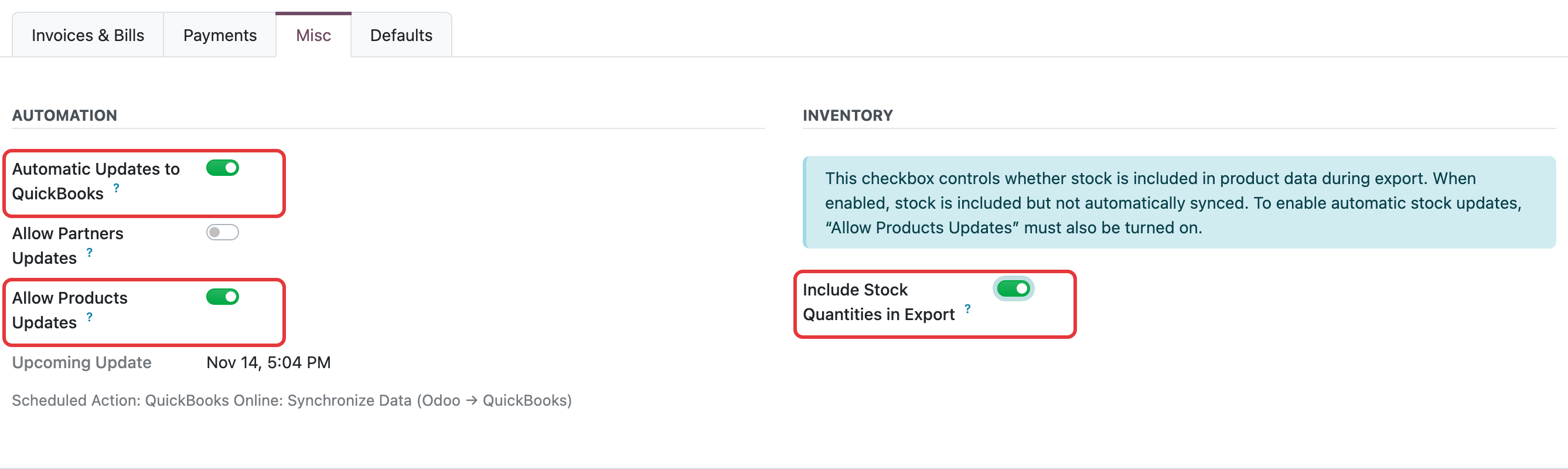
On the Misc tab, turn on Automatic Updates to QuickBooks, then choose what to update: Allow Partners Updates and/or Allow Products Updates.
To send stock too, turn on Include Stock Quantities in Export under Inventory. Stock is updated automatically only when Allow Products Updates is on as well.