The Odoo QuickBooks Online Connector links each Odoo company to its QuickBooks Online company and keeps products, customers, invoices and payments in sync. Your team works in Odoo, your accountant keeps working in QuickBooks Online, and both always see the same numbers.
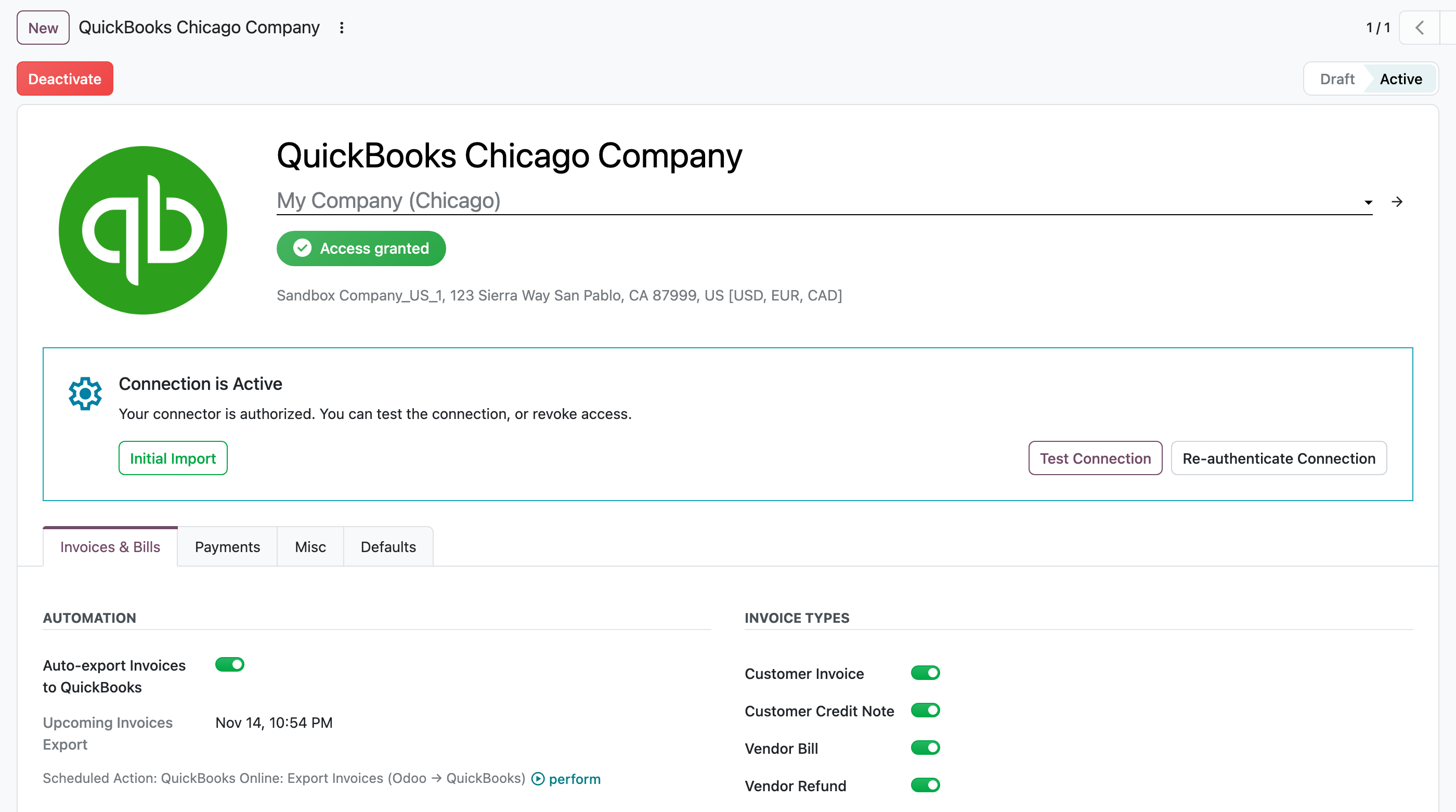
One connection per company: authorize it, run the Initial Import, and turn on the automation you need.
Why businesses choose it
-
No double entry. Invoices, bills, credit notes and payments created in Odoo appear in QuickBooks Online automatically, with the same numbers, products, amounts and taxes.
-
Always up-to-date payment status. Payments recorded in QuickBooks Online come back to Odoo: invoices turn In Payment and then Paid by themselves.
-
Get paid faster. Exported invoices get a QuickBooks payment link, and Send QuickBooks Payment Link sends it to the customer from Odoo.
-
Correct US sales taxes. One click on a Sales Order gets the taxes from QuickBooks Online tax calculation, based on the delivery address.
-
A safe start with your existing data. Initial Import brings your QuickBooks Online data into Odoo and links matching records, so nothing is duplicated.
-
Full transparency. Every import and export is a job you can see in the log, and every synced record shows its QuickBooks link.
-
Your own fields, synced too. Map QuickBooks Online custom fields to Odoo fields, so data like PO numbers or project codes travels with every invoice.
-
Several companies. Connect each Odoo company to its own QuickBooks Online company.
What you can sync
Products
Odoo ⇄ QuickBooks Online
Import your QuickBooks catalog or export Odoo products. Products are matched by SKU, so existing items are linked, not duplicated.
Customers and vendors
Odoo ⇄ QuickBooks Online
Your contacts stay the same in both systems, as QuickBooks Customers or Vendors.
Invoices and bills
Odoo ⇄ QuickBooks Online
Export customer invoices, vendor bills, credit notes and refunds with one action or automatically. Customer invoices created in QuickBooks Online can be imported into Odoo too.
Custom fields
Odoo ⇄ QuickBooks Online
Map QuickBooks Online custom fields to any plain-text Odoo field. They are exported with customer invoices, credit notes, vendor bills and refunds, and imported with customer invoices and credit notes. Each mapping is set per document type, and you choose whether it applies on import, on export or both.
Payments
Odoo ⇄ QuickBooks Online
Payments for invoices and bills sync both ways, manually or fully automatically.
Stock
Odoo → QuickBooks Online
Keep product quantities in QuickBooks Online up to date with Odoo.
Accounts, payment methods and payment terms
QuickBooks Online → Odoo
Imported from QuickBooks Online and mapped to Odoo, so every document lands on the right account.
Payments linked to refunds or credit notes are not synced.
Set up once, then it runs by itself
-
Connect your Odoo company to QuickBooks Online.
-
Import your existing QuickBooks Online data with Initial Import.
-
Turn on automation: invoices, payments, product and partner updates, and stock sync in the background on a schedule you choose.
You can also check more information in the videos:
https://www.youtube.com/playlist?list=PLxCw4zqZMrBHvmEhPWsu_s9KkR5HlZgc-